10 Steps to Get the Most Out of JobAssistAI
A big thank you to everyone already using JobAssistAI to land their next role, plus a simple 10-step guide for new members to unlock the full platform and start applying smarter today.
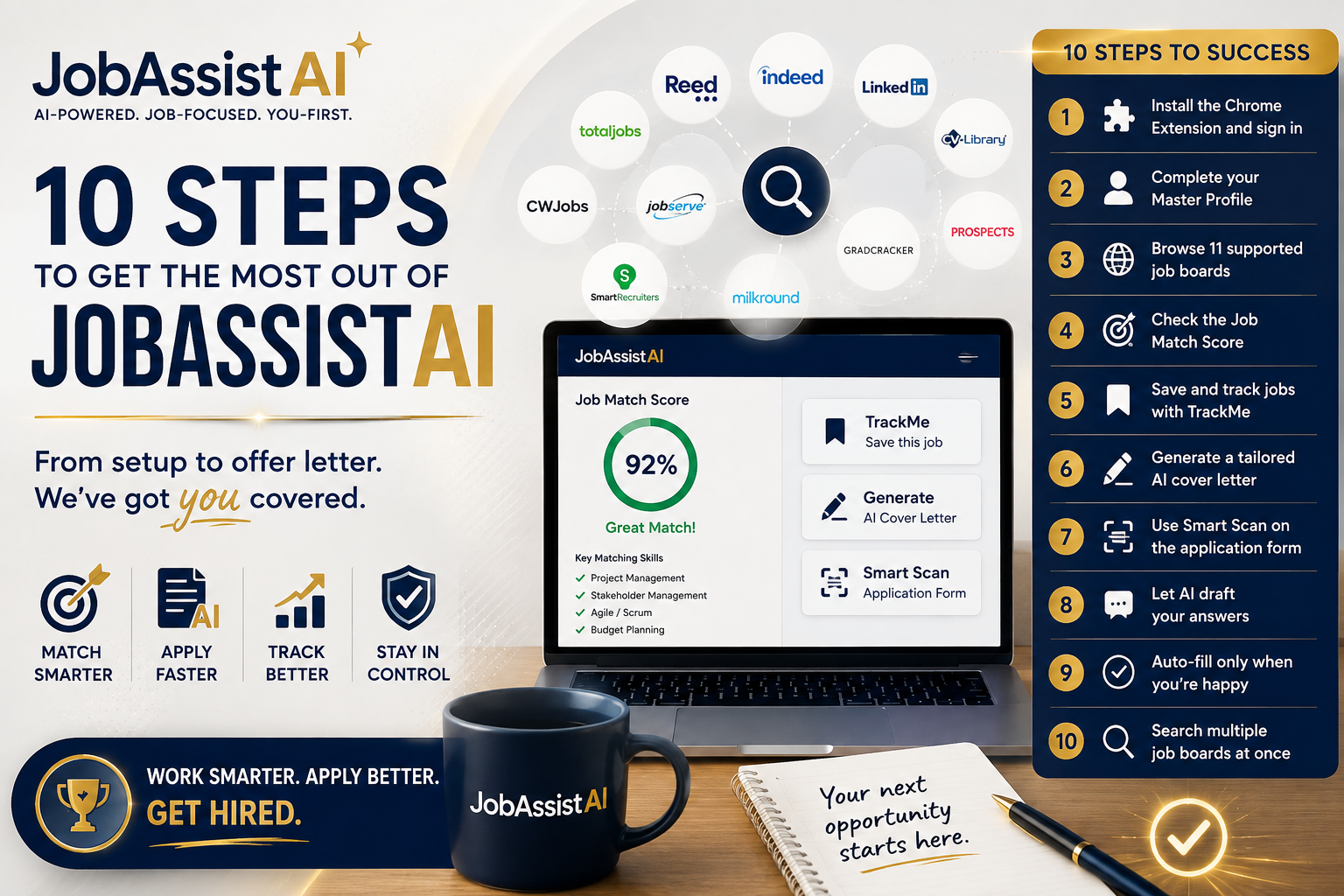
A big thank you to everyone who has been using JobAssistAI and putting yourselves out there, applying with confidence, and securing your dream job. Every message we get from a member who has landed an offer makes what we do worthwhile, and we're grateful you've trusted us to be part of that journey.
If you're one of our newer members, or if you signed up and haven't had a chance to properly dig in yet, this guide is for you. Below are the 10 steps that will get you the most out of JobAssistAI, from setting up your account to sending your first AI-tailored application. Follow them in order and you'll unlock the full platform in a matter of minutes.
1. Install the Chrome Extension and sign in
Your browser extension is the key to getting real value from JobAssistAI. It uses your existing JobAssistAI login, so there's nothing new to set up. Once installed, it lets you search across job portals quickly, match roles against your exact skills, and apply faster with an AI-written, customised cover letter, all without leaving the job listing you're looking at.
2. Complete your Master Profile
Before anything else works well, JobAssistAI needs to know who you are. Add your name, a short summary, at least one skill, and at least one experience entry. If you already have a CV to hand, you can import it and have your profile filled in seconds rather than typing everything out manually. Until your profile is complete, the extension will keep nudging you here, and features like Job Match scoring and Cover Letter generation stay locked. It only takes a few minutes, and it's worth doing properly the first time.
3. Browse any of our 11 supported job boards
Once your profile is set, head to any of the job boards we support: Reed, Indeed, LinkedIn, TotalJobs, CV-Library, Glassdoor, CWJobs, Jobserve, SmartRecruiters, Milkround, GradCracker, or Prospects. The JobAssistAI floating panel appears automatically the moment you land on a job listing, ready to help.
4. Check the Job Match Score on every listing
Before you decide whether a role is worth your time, check its Job Match Score. This tells you how closely your profile matches the role, and it's completely free and unlimited to use. Get into the habit of checking it on every listing you're considering; it's the fastest way to focus your effort on the roles you're genuinely a strong fit for.
5. Save and track jobs with TrackMe
Found something promising? Use TrackMe to save and track it in one place, building a clear pipeline of the roles you're interested in. Like the Job Match Score, this is completely free and unlimited, so save generously as you browse.
6. Generate a tailored AI cover letter
When you find a role that scores well and you're ready to apply, generate a cover letter directly from the panel. This is the one action that uses a credit (Explorer members get 3 free per month), so use it selectively on the roles you're most serious about rather than every listing you save.
7. Use Smart Scan on the application form
When you're ready to actually apply, open the application form and run Smart Scan. It works on any careers site or applicant tracking system, not just the 11 boards listed above, and automatically detects every question on the form for you.
8. Let AI draft your answers
Once Smart Scan has found the questions, JobAssistAI drafts answers for each one, personalised using the details from your Master Profile. These appear as editable cards, so you can read through them and adjust the wording before anything goes near the actual form.
9. Auto-fill only when you're happy with the answers
When you're satisfied with the drafted answers, click Auto-Fill to have them written into the form for you. Nothing is entered until you take this step yourself, so you're always in control and can trust exactly what's being submitted on your behalf.
10. Search multiple job boards at once
Instead of running the same search separately on five different tabs, use Multi-Site Search from the popup to fire one search across LinkedIn, Indeed, Reed, TotalJobs, and Jobserve simultaneously. It's a simple way to save time and make sure you're not missing opportunities on any single board.